Automations · 5 min read
Automate for yourself—or your whole team
Pick a preset, save it, schedule it on your computer, and share the same workflow with colleagues.
Automations are the payoff after you pick a workflow: your computer runs the job on a schedule or when a webhook fires—for you alone or as a shared playbook the team reuses.
1. Start from a preset on the home page
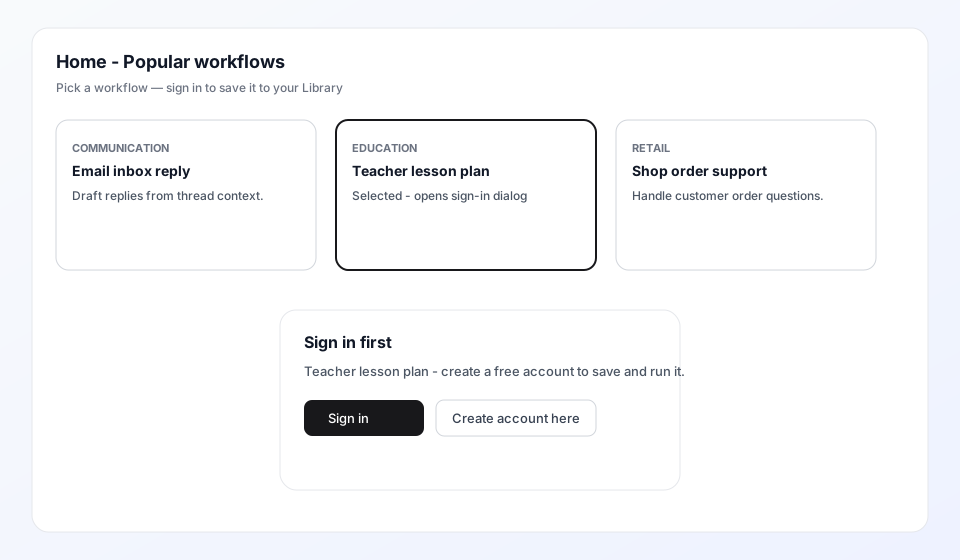
- Before sign-in, browse Popular workflows on the marketing home page
- Click a card (email reply, lesson plan, shop support, etc.)
- Sign in or create a free account, then save the preset to Library
2. Create the automation
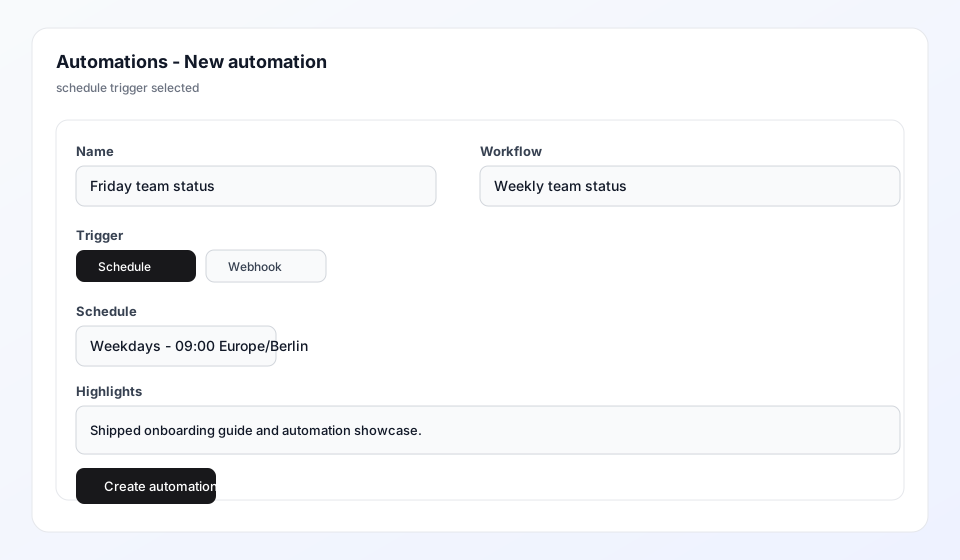
- Open a project → Automations → New automation
- Choose the saved workflow and fill its fields once
- Pick Schedule (hourly, daily, weekdays) or Webhook for external triggers
- AgentWitch syncs the job to your computer; the local scheduler runs it
3. Your computer runs it; the team can reuse it
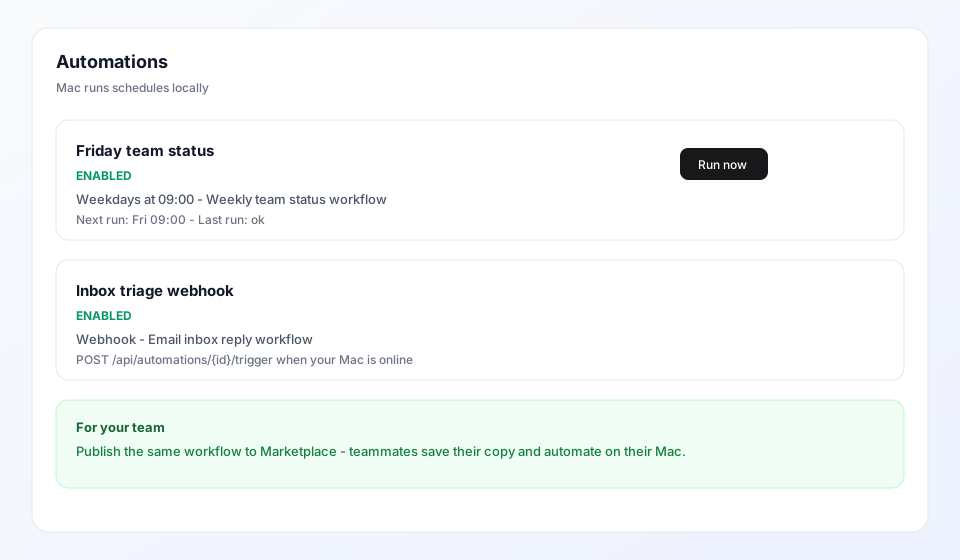
- Enabled automations show next run time and last status
- Results land in the project’s Reports like any manual send
- Publish the same workflow to Marketplace so teammates save and automate their own copy
- Company rules can require manager approval before someone else's Mac runs a sensitive job
Built around your computer
- Schedules run on your computer so jobs use your local files and tools
- Webhook triggers reach the server; your computer runs the work when it is ready
- After an AgentWitch update, open a project’s Automations tab once so the computer stays in sync